


Using your iPhone or Android phone as a backup camera monitor sounds convenient. The screen is already in your pocket, the dashboard stays less crowded, and some wireless cameras can be installed without running cables through the vehicle.
Then comes the practical question: what happens when someone calls while you are backing into a campsite?
Or when your phone is running navigation, the camera's Wi-Fi network has no internet connection, and the live image takes a moment to appear?
These details matter because phone-based backup cameras work differently from systems with dedicated monitors.
A Wi-Fi camera sends its image to an app on your phone or tablet. A traditional digital wireless camera usually transmits directly to a matching monitor. Products described as Bluetooth backup cameras need a closer look because Bluetooth may be used for pairing or controls, while the video travels over a different connection.
The right choice depends on how often you use the rear view, whether your phone is already handling navigation, how much installation work you want, and how reliably the image needs to remain available.
This guide compares all three approaches, with particular attention to connection stability, video delay, phone interruptions, vehicle length, and everyday reversing use.
Quick Navigation
Driving reminder: Set up the camera connection and mount the phone before moving the vehicle. Avoid interacting with apps or phone settings while driving. Cameras supplement mirrors, direct observation, and physical checks; they cannot guarantee that a reversing path is clear or provide exact clearance measurements.
Wi-Fi, Bluetooth, or Dedicated Monitor: How Do They Work?
Wireless backup cameras can use different types of radio connections.
The word "wireless" alone does not tell you whether the image appears on a phone, a dedicated screen, or the vehicle's existing display.
Start by identifying where the live video goes.
| Connection Type | Where Video Appears | How It Works | Main Consideration |
|---|---|---|---|
| Direct Wi-Fi camera | iPhone, Android phone, or tablet | Camera establishes a local Wi-Fi connection with the viewing device | App availability, phone interruptions, and connection stability |
| Bluetooth-enabled camera | Depends on product | Bluetooth may handle pairing or control; video transport must be verified | Confirm whether live video actually uses Bluetooth or Wi-Fi |
| Digital wireless camera | Dedicated monitor | Camera transmits through a compatible wireless link to the receiver/display | Requires a separate display and compatible camera system |
| Wired camera system | Dedicated or factory display | Physical video connection between camera and screen | Additional wiring and installation work |
Wi-Fi Backup Cameras for iPhone and Android
A phone-compatible Wi-Fi camera uses an app to show the live image.
The connection commonly works like this:
- The camera powers on and makes its wireless connection available.
- The phone connects to the camera's local Wi-Fi network.
- The compatible app opens the live video feed.
- The driver views the rear image on the phone or tablet.
Some camera systems establish their own local Wi-Fi network, which allows the image to work without a home router, cellular data, or external internet service.
This is particularly useful for RVs, trailers, and rural locations where mobile coverage may be weak.
The AUTO-VOX Solar4 Wifi, for example, uses the AUT VIEW app and a direct local Wi-Fi connection to send live video to compatible iPhone, iPad, and Android devices.
Its published compatibility requirements include iOS 13 or later and Android 10 or later. Confirm current app requirements for your particular device before purchase.
The app-based arrangement removes the need for a separate dashboard monitor and makes a phone or tablet part of the camera system.
What Does Bluetooth Actually Do?
Bluetooth is commonly used for short-range device communication, including pairing, configuration, and accessory controls.
It has more limited data throughput than the Wi-Fi connections commonly used to transmit high-resolution live video.
Some products marketed as "Bluetooth backup cameras" use Bluetooth during initial setup and Wi-Fi for the video feed.
Others may implement a different wireless architecture.
Before buying a Bluetooth-labeled camera, ask:
- Does the live video actually travel over Bluetooth?
- Does the system switch to Wi-Fi after pairing?
- Which app is required?
- What video resolution and frame rate are supported?
- What is the expected operating distance?
- Does it work on both iOS and Android?
For a product claiming Bluetooth-only video transmission, verify its real-time video specifications and actual performance before using it as a reversing aid.
Bluetooth connectivity to a car stereo does not automatically allow a Bluetooth camera image to appear on that stereo screen.
The display, app, and camera must support the same video connection method.
How Dedicated Wireless Monitors Differ
A dedicated wireless camera system pairs its camera with a matching monitor.
Instead of opening an app, the driver uses the screen supplied with the camera kit.
These systems commonly use a dedicated digital wireless video connection, sometimes operating in the 2.4 GHz band.
A digital wireless link is not automatically the same as a phone Wi-Fi connection.
The practical differences are straightforward:
- the phone remains available for navigation and calls
- the camera image has its own screen
- the system does not depend on a phone app remaining open
- the monitor can provide camera-specific controls
- some systems support two or three camera feeds
The separate monitor still requires power and an appropriate mounting position.
Wireless transmission also remains subject to distance, obstacles, interference, and installation conditions.
Connection rule: Identify the actual video connection first. Phone-based Wi-Fi, Bluetooth pairing, and dedicated digital wireless transmission describe different parts of the camera experience.
What Affects Video Lag, Signal Stability, Calls, and Navigation?
Phone backup cameras introduce one more device into the video path.
The camera captures the image, transmits it, and the phone app processes and displays it.
Several things can affect how smoothly that process works.

Video Latency: How Far Behind Is the Image?
Latency is the time between something happening behind the vehicle and the image appearing on the screen.
During reversing, even a noticeable fraction of a second can affect how current the displayed scene feels.
Potential sources of delay include:
- camera image processing
- video compression
- wireless transmission
- signal retransmission
- phone processing
- app buffering
- display refresh behavior
Higher camera resolution does not automatically produce lower latency.
A 1080P image with smooth, consistent updates can be more usable than a higher-resolution feed that repeatedly pauses or falls behind real movement.
When testing a camera, look for two different problems:
Delay: The video is smooth, but objects appear slightly later than they move in real life.
Freezing or dropped frames: The image pauses, skips, or suddenly jumps to a newer position.
Both deserve attention during slow reversing.
Do not attempt to measure latency by reversing toward an obstacle. Test the image while parked, with a passenger or another person moving a clearly visible reference object at a safe distance.
If the image becomes delayed or freezes during a maneuver, stop the vehicle and use direct checks until the view is reliable again.
Wireless Range and Vehicle Structure
Signal range is another area where product specifications need context.
A wireless camera may advertise a long connection distance measured under favorable open conditions.
Actual performance can change when the signal passes through:
- metal vehicle panels
- a truck bed or camper shell
- an RV body
- a trailer structure
- cargo
- the tow vehicle's cabin
Solar4 Wifi, for example, publishes an open-condition wireless range of up to 230 feet.
That specification is useful when comparing potential installations, but it does not guarantee uninterrupted reception through every vehicle or trailer.
For a long backup camera for trailer installation, test the camera with the tow vehicle and trailer connected exactly as they will be used.
Keep doors closed during the test and confirm the image remains available from the phone's normal mounted position.

Phone Calls, Notifications, and Navigation
This is one of the biggest everyday differences between phone viewing and a dedicated monitor.
Your phone may also be handling:
- navigation
- incoming calls
- text notifications
- music playback
- CarPlay or Android Auto
- other background apps
An incoming call may cover the camera feed, display a notification, or move another interface to the foreground, depending on the phone and app.
Switching to a navigation app can also place the camera app in the background.
Some operating systems may pause or limit background activity to manage resources or battery consumption.
A live camera app should therefore be tested for the way it handles interruptions on the specific phone.
If you use the same phone for navigation and the backup camera, think through the reversing routine before starting:
- Open the camera app while stopped.
- Confirm the live image is current.
- Keep the viewing device securely mounted.
- Silence nonessential notifications where appropriate.
- Stop before changing apps or connection settings.
A dedicated monitor avoids many of these shared-screen conflicts because the rear-camera image has its own display.
Phone Battery, Heat, and the Wi-Fi Connection
Displaying live video consumes phone power.
Long viewing sessions can also increase device temperature, particularly when the phone is charging, running navigation, and sitting in direct sunlight.
Use a suitable charging arrangement and keep the device away from excessive heat.
Another practical detail is that some camera-generated Wi-Fi networks provide local connectivity without internet access.
Your phone may display a message such as "No Internet Connection."
That message alone does not mean the camera connection has failed.
The camera can still send local video over Wi-Fi when the app and connection are working correctly.
However, internet-dependent navigation or other apps may behave differently while that Wi-Fi connection is active. Some phones can continue using cellular data for internet services; behavior varies by operating system and settings.
For trips through remote areas, download navigation maps in advance and test how your phone handles local Wi-Fi and cellular data together.
Reliability rule: Test the complete viewing experience, including incoming notifications, app switching, signal stability, and phone temperature. A camera connection that works in the driveway still needs to work in the vehicle's normal operating configuration.
Phone Backup Camera vs. Dedicated Monitor: Which Should You Choose?
Both approaches can provide useful rear visibility.
The decision comes down to how often you need the image and whether the phone is already occupied with other driving tasks.
| Consideration | Phone-Based Wi-Fi Camera | Dedicated Monitor |
|---|---|---|
| Display | Existing phone or tablet | Separate camera monitor |
| Installation | Can avoid installing another display | Requires monitor mounting and power |
| Live-view access | Usually open/connect through the app | Camera view through its paired monitor |
| Phone calls | May interrupt or obscure the image | Camera display remains separate |
| Navigation | May compete for the same screen | Phone can remain dedicated to navigation |
| Connection | Depends on phone Wi-Fi, app, and camera | Depends on the dedicated wireless or wired link |
| Screen size | Depends on chosen phone or tablet | Typically fixed by the camera kit |
| Multi-camera viewing | Depends on app/system support | Dual/split-screen options available on compatible systems |
| Ideal use | Occasional reversing and portable setups | Frequent or extended rear viewing |
When a Phone-Based Camera Makes Sense
A phone-based camera can be particularly practical when rear viewing is occasional.
Examples include:
- backing a trailer into a campsite
- checking a hitch area
- maneuvering a pickup near a loading area
- using a portable camera on different vehicles
- avoiding another permanent dashboard screen
A rechargeable magnetic camera can further simplify installation because there is no long video cable between the rear camera and the phone.
If the rear view is needed only during a short, deliberate maneuver, opening the app beforehand may be a reasonable tradeoff.
Phone viewing also gives you the flexibility to choose a larger tablet screen when the product supports that device.

When a Dedicated Monitor Makes More Sense
A dedicated display becomes more attractive when the camera is used frequently or needs to remain readily available.
Consider a separate monitor when:
- you reverse several times each day
- your phone is regularly used for navigation
- you want a rear image without opening an app
- several drivers share the vehicle
- you use two cameras in split-screen mode
- you need longer viewing sessions
A dedicated monitor can also simplify the workflow for drivers who prefer physical controls and a consistent screen location.
For RVs and larger vehicles, a 7-inch-class monitor can make dual-camera views easier to read than a small phone screen.
The rearview mirror backup camera format provides another option for drivers who want a dedicated display integrated around the mirror position rather than an additional screen on the dashboard.
What About Automatic Reverse Activation?
Traditional vehicle-integrated backup cameras can switch to the rear image when reverse gear is selected.
A phone-based Wi-Fi camera may require the driver to open the app and establish the live view manually.
Do not assume every phone camera automatically launches when the vehicle enters reverse.
Verify the activation method for the specific system.
This can be a meaningful difference when the vehicle is backed up frequently throughout the day.
Decision shortcut: For occasional parking, a phone-based Wi-Fi camera offers flexibility and less dashboard hardware. For frequent reversing, longer viewing sessions, or shared use with navigation, a dedicated monitor may be more convenient.
How to Set Up and Test a Phone Backup Camera
Phone backup cameras should be configured before the first reversing maneuver.
The exact app screens depend on the camera and phone model, but the general process is similar across local Wi-Fi systems.
Initial Setup for iPhone and Android
- Confirm the camera supports your phone's operating system and version.
- Install the manufacturer's specified app.
- Charge or connect power to the camera.
- Mount the camera at a suitable rear-facing location.
- Join the camera's local Wi-Fi network following the manufacturer's instructions.
- Grant the permissions required for the app to connect to nearby devices.
- Open the live view and check the camera angle.
- Secure the phone in a suitable holder before moving the vehicle.
For Solar4 Wifi, the app is called AUT VIEW.
On iPhone, local-network access may need to be allowed in the phone's privacy settings. The exact permission prompts depend on the iOS version and app.
On Android, confirm any required nearby-device, location, Wi-Fi, or other app permissions shown during setup. Permission names and network behavior vary between Android versions and device manufacturers.
If the phone reports that the camera Wi-Fi has no internet access, stay connected to the camera network when required by the product instructions.
The local video feed does not need a public internet connection.
Test the Connection Before You Need It
A short test in an empty parking area can reveal problems that are easy to miss during installation.
Check:
- time needed for the app to show the live image
- connection stability with the vehicle doors closed
- image delay and dropped frames
- readability in bright daylight
- phone-call or notification behavior
- navigation-app switching
- camera battery and phone charging
For trailers and longer vehicles, test with the trailer connected and the phone in its actual viewing position.
If the camera is mounted magnetically, verify that the mounting surface is suitable and that the camera remains securely attached during normal movement.
Quick Troubleshooting Guide
| Problem | What to Check First |
|---|---|
| Phone cannot find the camera | Camera power, Wi-Fi settings, pairing procedure, and supported app |
| Connected but no video | App permissions, correct Wi-Fi network, and app status |
| "No Internet" message | May be normal for a direct local camera Wi-Fi connection |
| Feed drops when reversing | Vehicle structure, distance, interference, and phone network switching |
| Image appears delayed | Wireless conditions, app performance, phone resources, and signal path |
| Navigation hides the camera | App-switching behavior; use a dedicated display if both views are regularly needed |
| Phone becomes hot | Direct sunlight, charging, screen brightness, and other active apps |
If a connection issue persists, consult the camera manual and the manufacturer's support instructions before changing advanced phone network settings.
Always stop the vehicle before reconnecting or troubleshooting the app.
AUTO-VOX Phone and Dedicated Monitor Camera Options
AUTO-VOX offers both phone-based viewing and dedicated-monitor systems.
The main difference is how the rear image reaches the driver and how the display fits into everyday use.
| Product | Viewing Method | Practical Fit |
|---|---|---|
| Solar4 Wifi | Local Wi-Fi to phone or tablet | Phone-based reversing without an additional monitor |
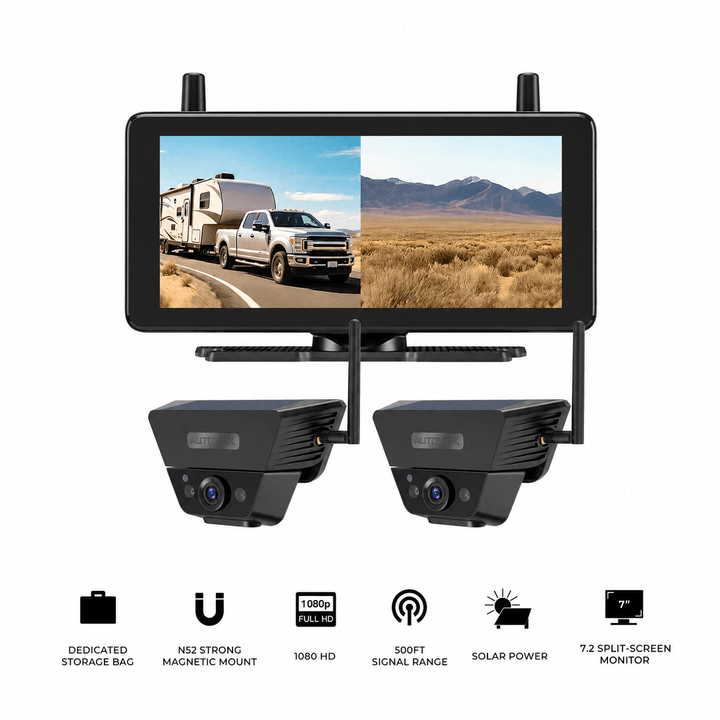
| Solar5B | 7.2-inch dedicated monitor | Portable rear view with a separate screen |
| Solar3A Plus | 5-inch dedicated monitor | Compact standalone rear-camera setup |
| Solar5B Dual-Camera Kit | 7.2-inch monitor with two cameras | Rear plus another selected camera angle |
Solar4 Wifi is the phone-based option. It provides a 1080P live image through AUT VIEW on a compatible iPhone, iPad, or Android device. The rechargeable magnetic camera uses local Wi-Fi, with solar assistance and USB-C charging.
Its role is straightforward: provide a nearby selected camera view while the phone remains within the local wireless range.
The system supports one viewing device at a time. It is intended for local viewing and does not provide cloud-based access from anywhere.
Solar5B provides a separate 7.2-inch monitor paired with a rechargeable magnetic camera. This keeps the rear image independent of phone calls and navigation apps.
Solar3A Plus uses a compact 5-inch monitor and rechargeable camera, making it suitable for drivers who prefer a smaller dedicated display.
Solar5B Dual-Camera Kit adds a second magnetic camera and split-screen support. It can suit drivers who want two selected perspectives without relying on their phone as the viewing device.
Phone-Based and Dedicated Monitor Backup Cameras


Prices and configurations may change. Confirm current product specifications, app compatibility, phone operating-system requirements, camera mounting conditions, power arrangements, and expected wireless performance before purchase.
Frequently Asked Questions
Can I use my iPhone or Android phone as a backup camera monitor?
Yes, when the backup camera supports smartphone viewing through a compatible app. Local Wi-Fi cameras can transmit a live rear image to supported iPhone or Android devices. Confirm the required operating-system version, app, and connection method for the specific camera.
Do phone backup cameras need Wi-Fi or Bluetooth?
Many phone-based backup cameras use Wi-Fi to transmit live video. Some products also use Bluetooth for pairing or configuration. Check the manufacturer's specifications to confirm which connection actually carries the video, particularly when a product is advertised as a Bluetooth backup camera.
Can a Wi-Fi backup camera work without internet?
Yes. A camera with a direct local Wi-Fi connection can send video to a compatible phone without cellular coverage or external internet. Solar4 Wifi uses this arrangement through AUT VIEW. The phone still needs to remain within the camera's local Wi-Fi range.
Will phone calls or navigation interrupt my backup camera?
They can. Incoming calls, notifications, app switching, and operating-system background restrictions may obscure or interrupt the camera view. Actual behavior depends on the phone and app. A dedicated monitor keeps the rear image on a separate screen when navigation or calls regularly use the phone.
Why does my phone backup camera have a delay?
Video delay can result from camera processing, wireless transmission, phone decoding, app buffering, or interference. Test the image while parked and confirm that movement appears smoothly and promptly. If the feed becomes delayed or freezes while reversing, stop and use direct checks until the view is reliable.
Is a dedicated backup camera monitor better for an RV or trailer?
A dedicated monitor can be more convenient for frequent reversing, longer viewing sessions, or dual-camera use. A phone-based Wi-Fi camera can suit occasional campsite parking or portable trailer applications. For either system, confirm wireless performance on the actual vehicle and trailer combination.
Final Thoughts: Choose the Screen Around Your Driving Routine
A phone backup camera can be a practical way to add rear visibility with less permanent dashboard hardware.
Local Wi-Fi lets a supported phone or tablet display the camera image without relying on cellular service or an internet connection. Bluetooth may help with pairing on certain systems, so the video transmission method should always be verified.
The main tradeoff is that the phone is a shared device.
Navigation, calls, notifications, app switching, charging, and operating-system behavior all become part of the camera experience.
A dedicated monitor provides a separate screen and a more consistent viewing arrangement for drivers who use the camera frequently.
Before choosing, answer five questions:
- Will you use the rear camera occasionally or throughout the driving day?
- Does your phone already handle navigation, calls, or CarPlay/Android Auto?
- Can the camera maintain a stable connection across your actual vehicle length?
- Is the phone or monitor easy to view without obstructing normal driving visibility?
- Would a second camera or future split-screen use make a dedicated display more useful?
For occasional parking and portable installations, a phone-based Wi-Fi camera offers flexibility. For frequent reversing, long viewing sessions, or multi-camera operation, a dedicated display can simplify the experience.
Choose the system that keeps the rear image available when you need it, fits your existing dashboard and phone use, and works reliably on the vehicle you actually drive.


