




Is installation of AUTO-VOX backup cameras complicated?
halloween exclusive
better gear. bigger treats.
Limited-time deals, exclusive gifts & a bonus for your next ride.

SOLAR 5B
Peace of Mind, Even After Dark.
peace of mind, even after dark
Keep an Eye on Your Campsite After Dark.

s4w
your backup view. right on your phone.
See Behind Your Vehicle, Right on Your Phone.

About AUTO-VOX
Trusted by 500,000+ Drivers Worldwide.
Engineering wireless & solar vehicle safety since 2007. The smarter way to see what’s behind.


Unlock An Extra
5% OFF
For BLACK Friday
Sign up now and unlock an exclusive 5% EXTRA discount that can be
stacked with our Black Friday offers.

extra 5% off
your exclusive reward

stackable
with black friday deals

no tricks
just real savings
black friday is coming...


Unlock An Extra
5% OFF
For BLACK Friday
Sign up now and unlock an exclusive 5% EXTRA discount that can be
stacked with our Black Friday offers.

extra 5% off
your exclusive reward

stackable
with black friday deals

No Tricks
just real savings
black friday is coming...
Worldwide Shipping
Available in more than 20 countries.
SUPPORT 24/7
24/7 Support, anytime you need it.
100% PAYMENT SECURE
Shopify official payment, 100% secure payment guaranteed.
30-Day Return Policy
Support 30-day no-reason return and exchange.
Unlock An Extra
5% OFF
For BLACK Friday
Sign up now and unlock an exclusive 5% EXTRA discount that can be
stacked with our Black Friday offers.
extra 5% off
your exclusive reward
stackable
with black friday deals
No Tricks
just real savings
black friday is coming...
Title
Quick Finder
With DVR

For Cars & SUVs

For RV

For Trailers

Multi-camera

Rearview Mirror
Top Picks for Every Driver
Shop by Category
Camping & RVing
Explore freely. Park anywhere.

Towing & Trailers
Hook up. Back up with confidence.

Daily Commute
Park easy. Stay safe.

Power & Connection

Solar Series
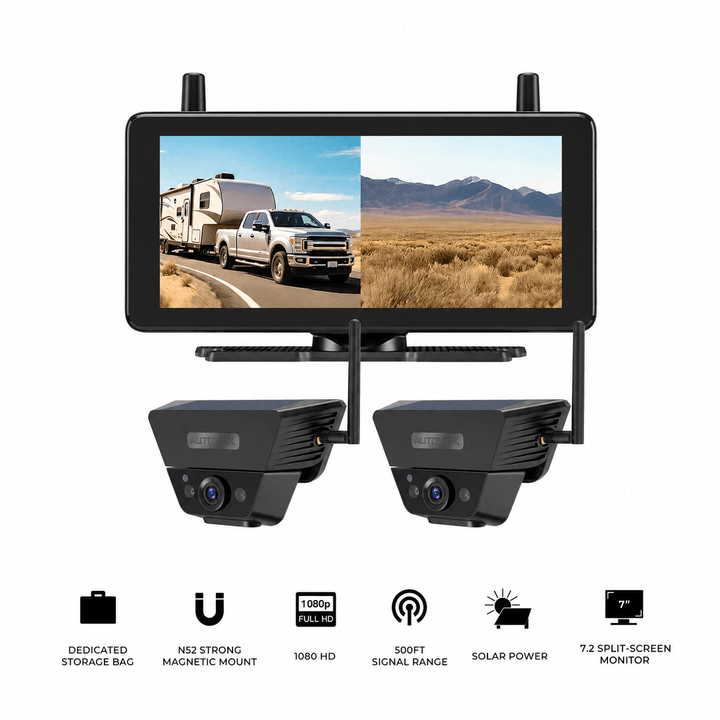
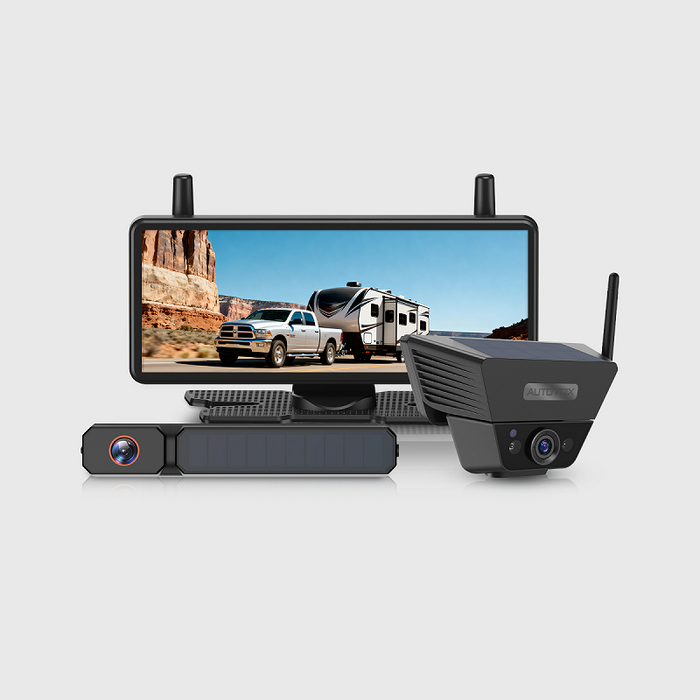
Sun-Powered Freedom. Zero Wiring Required. Install in just 60 seconds—no drilling, no auto-shop fees. Powered by continuous solar charging and ultra-stable signal transmission, it’s the ultimate hassle-free upgrade for every vehicle.

Wireless Series
Real-Time HD Clarity. Signal That Never Flinches. Powered by AutoLink™ 2.4GHz technology, experience zero-lag 1080P live stream across long vehicles. Plug, play, and drive with unshakeable clarity.

Wired Series
Classic connection, ultimate reliability. Hardwired setup ensures real-time, interference-free video at all times. Built for families who value consistency and durability.

As Seen On
It’s bright and crystal clear so you can see details like license plate numbers.


Testsieger ist die Auto-Vox Solar 3A Plus: stabile Signalübertragung und tolle Bildqualität, bei Tag und Nacht.

Recognized across the Harvest Hosts RV community for life on the road.

T9Pro:すっごく映像が綺麗で肉眼で見ているくらい

Dank kabelloser Anbindung lässt sich die Rückfahrkamera leicht nachrüsten, ohne ein Kabel aufwendig durch den Innenraum zu verlegen.

It’s bright and crystal clear so you can see details like license plate numbers.
Testsieger ist die Auto-Vox Solar 3A Plus: stabile Signalübertragung und tolle Bildqualität, bei Tag und Nacht.
Dank kabelloser Anbindung lässt sich die Rückfahrkamera leicht nachrüsten, ohne ein Kabel aufwendig durch den Innenraum zu verlegen.
T9Pro:すっごく映像が綺麗で肉眼で見ているくらい
Recognized across the Harvest Hosts RV community for life on the road.


19 Years of Engineering Safety into Every Journey.
Since 2007, AUTO-VOX has pioneered wireless vehicle technology. Trusted by over 10,000,000 users across 20+ countries, we don’t just build cameras—we eliminate driving anxiety so you can focus on the road ahead.
Hear From Creators
Youtuber

Youtuber
Youtuber
Youtuber
Youtuber
What Our CustomerS Say
Steven Tucker
⭐️⭐️⭐️⭐️⭐️

“This camera was recommended to me by a friend who has these on his camper. I got the twin pack with 7” Monitor. The clarity and camera range is impressive , especially infra red night mode , allowing some interesting viewing from inside the vehicle at night time. The product quality is fantastic , built to last , definitely “ex squaddie proof” too. ”
Jerry
⭐️⭐️⭐️⭐️⭐️

“I don't usually write reviews, but I must in this case! ! had some trouble at first. These folks walked me through and even sent replacement equipment. Awesome!! Very good quality...clear, easy to instaall.. ”
Adan
⭐️⭐️⭐️⭐️⭐️

“I use it on the back of my pickup, and it makes lining up the tow ball with the caravan hitch much easier. The picture on my phone is clear, and I can usually get everything lined up first time without jumping in and out of the cab. A really handy bit of kit.”
John
⭐️⭐️⭐️⭐️⭐️

“I recently purchased the back-up camera for our new RV. It was easy to install in the location identified by the rv manufacturer. It comes with a nice gasket to seal the location from water. I also used some clear caulk as additional protection. The camera works well and customer support was very fast for a technical question that I had. style of mounting.”
sgallery
⭐️⭐️⭐️⭐️⭐️

“I purchased a back up camera from my Rv last year September 2023 and was so impressed I opted to purchase another one to use as a trail camera on the front of my jeep while offroading for this year while we are in Arizona, important to see what you are about to go over before you actually climb onto it.”
Sandra
⭐️⭐️⭐️⭐️⭐️

“This is perfect for an older car that doesn't have a camera. Great for long vehicles like RVs or trucks. My sister says she's gonna borrow it to try on her school bus. It's easy to install and set up. Has a clear picture. It has a heavy duty case for storage when not in use. It makes a great kitty cam too.”
BlogS

By AaliyahGloria
Guides
Oct 23, 2026
The colored lines on a backup-camera screen look simple: green, yellow, red, and sometimes another pair of lines showing where the vehicle is headed.
The challenge is that those lines do not mean exactly the same thing on every vehicle or every aftermarket camera.
Some are fixed overlays that stay in the same place no matter where the steering wheel points. Others curve as the steering wheel turns and estimate the path the vehicle will follow. Some aftermarket systems let you adjust the width, height, or position of fixed parking lines, while factory systems may calculate dynamic guidelines from steering-angle information.
That distinction becomes important when the lines appear too wide, too narrow, shifted to one side, or completely different from the path the vehicle actually takes.
A backup camera guideline is best treated as a visual reference layered over the live camera image. It can help organize the scene behind the vehicle, but it does not turn the screen into a measuring instrument.
This guide explains what the colors usually mean, how static and dynamic lines differ, why distance can look different on a slope, and how to approach calibration when the overlay no longer matches the vehicle.
Quick Navigation
Guideline reminder: Parking lines are approximate visual references. Their spacing, colors, and represented distances vary by vehicle and camera system. Use the owner's manual for the exact meaning of factory guidelines, and continue checking mirrors, direct sightlines, and the surrounding area while reversing.
What Do the Red, Yellow, and Green Backup Camera Lines Mean?
Most parking overlays combine two types of information:
- the approximate path or width of the vehicle
- reference zones at different distances behind it
Green, yellow, and red are commonly used because they provide an intuitive progression from farther away to very close.
| Typical Line or Zone | Common Meaning | How to Use It |
|---|---|---|
| Green | Farther rear reference area | Begin judging alignment and available space |
| Yellow | Closer / caution area | Slow further and reassess distance |
| Red | Closest reference zone | Treat the object as very close and stop before relying on the line as an exact limit |
| Vehicle-width lines | Approximate projected width | Help align the vehicle with a parking space or driveway |
| Center line | Approximate center of the vehicle | Useful for hitching or centering where supported |
The colors themselves are more consistent than the distances they represent.
One manufacturer may place a red line roughly a foot and a half behind the bumper and a yellow line farther out. Another system may use different spacing or additional blue, white, or center lines.
This is why a generic statement such as “the red line always means 18 inches” is unreliable.
Check the owner's manual for a factory camera or the monitor instructions for an aftermarket system.
The Lines Are Drawn on the Ground Plane
Parking guidelines make the most sense when the vehicle is on relatively flat ground and the obstacle touches or sits close to the road surface.
That matters because the camera image also includes objects above the ground.
A loading dock edge, pickup tailgate, tree branch, trailer corner, or object that overhangs its base can reach the vehicle before its ground contact point reaches a colored distance line.
The overlay cannot account for every three-dimensional shape behind the vehicle.
Wide-Angle Cameras Change How Distance Looks
Most reversing cameras use a wide field of view so the driver can see more of the rear area.
The tradeoff is perspective distortion.
Objects near the edge of the frame can look stretched, while an obstacle in the center may appear farther away than expected until the vehicle gets close.
The colored zones help create repeatable reference points, but drivers still need to learn how the image looks on that specific vehicle.
Useful habit: During the first few uses, stop early and compare the camera image with the real distance outside. That builds a much better sense of what each guideline means on your vehicle.
Static vs. Dynamic Backup Camera Guidelines
The biggest technical difference between parking-line systems is whether the projected path changes when the steering wheel moves.
Static Guidelines Stay Fixed
Static guidelines remain in the same position on the monitor.
They can show:
- approximate vehicle width
- center position
- distance zones
- a straight reversing corridor
Turn the steering wheel and the lines stay where they are.
The driver needs to combine the fixed overlay with mirrors and steering input to understand how the vehicle will curve into the space.
Static lines are common on aftermarket systems because they do not require steering-angle data from the vehicle.

Adjustable Static Lines Are Still Static
This distinction is easy to miss when shopping for a wireless backup camera.
An aftermarket monitor may let you:
- move the lines up or down
- change their width
- shift the overlay horizontally
- select among several guideline sizes
Those features help fit the overlay to different vehicles and camera mounting heights.
The lines remain static if they do not change with steering input.
Adjustable parking guidelines and dynamic parking guidelines are two different features.
Dynamic Guidelines Follow Steering Input
Dynamic guidelines—also called active guidelines or estimated course lines by some manufacturers—change as the steering wheel turns.
The system uses steering information to estimate the path the vehicle is likely to follow.
Turn the wheel right and the projected lines curve right. Straighten the steering and the path returns toward a straight trajectory.
This can be especially helpful for:
- reverse parking
- parallel parking
- tight garage entrances
- visualizing how a steering correction changes the rear path
Dynamic lines are usually integrated more deeply with the vehicle than simple aftermarket overlays because the display needs steering-angle or related vehicle data.
Dynamic Lines Are an Estimate of Trajectory
The projected curve reflects steering input and system calibration.
It does not account for every condition that can affect the real vehicle path.
Examples include:
- uneven terrain
- low tire pressure
- heavy or uneven loading
- trailer articulation
- slippery surfaces
The driver remains responsible for confirming the actual surroundings and vehicle movement.
| Feature | Static Guidelines | Dynamic Guidelines |
|---|---|---|
| Moves with steering wheel | No | Yes |
| Shows distance zones | Often | Often |
| Can be adjustable | Yes, on many aftermarket systems | Depends on vehicle/system |
| Needs steering data | No | Usually yes |
| Common use | Aftermarket and basic factory systems | Integrated factory parking systems |
How to Use Backup Camera Lines for Distance and Parking
Parking lines become more useful when the driver separates three different questions:
How far away is the object? Is the vehicle aligned with the space? Where will the vehicle move after the steering wheel turns?
The colored horizontal lines mainly help with the first question.
Vehicle-width lines help with alignment.
Dynamic trajectory lines, when equipped, help visualize the third.

Use the Colored Zones as Progress Markers
As an object moves from the green area toward yellow and then red, the remaining distance is decreasing.
Slow down progressively rather than waiting until the object reaches the closest zone.
During a tight maneuver, stop whenever the image becomes uncertain and check the actual space.
Use Width Lines for Alignment
When reversing into a parking space, fixed width lines can help compare the vehicle's projected straight-line position with the painted parking lines.
On a dynamic system, the trajectory overlay can show how steering input changes that approach.
Once the vehicle becomes parallel with the space, the steering should return toward straight according to the normal parking maneuver.
Hills and Loads Can Change What the Overlay Looks Like
Guideline geometry assumes a relationship between:
- camera height
- camera angle
- vehicle attitude
- ground surface
Change one of those and the overlay may appear less accurate.
Examples include:
- backing uphill or downhill
- one side of the vehicle sitting on a slope
- a heavily loaded truck rear
- a flat or underinflated tire
- a trailer adding tongue weight
An apparent guideline mismatch on an incline does not always mean the camera has lost calibration.
Hitches and Cargo Carriers Change the Real Rear Edge
This is particularly important for trucks, SUVs, and RVs.
If guidelines were calibrated from the bumper and you add:
- a hitch-mounted bike rack
- a cargo carrier
- a spare tire carrier
- a trailer coupler or towing accessory
the colored line still represents the original camera calibration while the physical vehicle combination extends farther rearward.
Use direct checks whenever an accessory changes the rear boundary.
A Trailer Camera Needs Its Own Reference
Guidelines suitable for a pickup's rear bumper may not make sense if the same camera is moved to a trailer.
The camera height, trailer width, and physical rear edge have all changed.
Portable systems should therefore be recalibrated or have their guidelines disabled when the camera is moved to a substantially different position, depending on the product's available settings.
Distance rule: Parking lines describe the camera's calibrated reference plane. Slopes, loads, accessories, and a changed camera position can alter the relationship between the overlay and the real vehicle.
How to Calibrate Backup Camera Guidelines When They Look Wrong
The first step is identifying what kind of system you have.
An aftermarket camera with adjustable static lines can often be corrected through the monitor menu.
A factory system with steering-linked dynamic lines may require a vehicle-specific calibration process.
Start by Checking the Physical Camera
Before changing any software setting, inspect the camera itself.
Check whether:
- the camera is still centered
- the bracket has shifted
- the license-plate mount is bent
- the camera angle has changed
- the vehicle recently received a rear impact
- the lens or surrounding trim has been repaired or replaced
A physically tilted camera makes correctly drawn guidelines look wrong.
Software adjustment should not be used to hide a loose or damaged mount.
Calibrating Adjustable Aftermarket Static Lines
For a system that provides adjustable parking guidelines, use a controlled setup.
- Park on a flat, level surface.
- Set the steering wheel straight.
- Use normal tire pressures and a representative vehicle load.
- Confirm the camera is securely mounted in its intended final position.
- Place visible markers behind the vehicle at the positions or distances specified in the camera manual.
- Open the guideline-adjustment menu.
- Adjust width, height, or line position until the overlay matches the manufacturer's calibration reference.
- Test the result slowly and compare the screen with the real vehicle position.
Cones, tape, or other visible ground markers can make the process easier.
Do not invent distance values if the camera instructions specify their own calibration method.
When the Camera Moves, Recheck the Lines
Portable and magnetic cameras make repositioning easy.
Moving the camera can also change:
- height
- horizontal center
- vertical angle
- distance from the rear edge
Any significant change can make the existing parking-line setup less representative.
Recheck the guidelines whenever a portable camera moves to a new mounting position or another vehicle.

Factory Dynamic Guidelines Need a Different Approach
If factory trajectory lines are badly misaligned, determine whether the problem is the camera image or the dynamic overlay.
Warning signs include:
- vehicle-width lines far from the actual vehicle path on level ground
- dynamic lines moving while the steering wheel is centered
- dynamic and fixed lines failing to align when the steering is straight
- guidelines changing after camera replacement or rear-body repair
- guidelines disappearing when the system should display them
Factory dynamic systems can rely on steering-angle information and vehicle-specific calibration data.
A battery disconnect or steering-component service may also trigger a relearn procedure on some vehicles.
There is no universal reset sequence.
One vehicle may relearn after driving straight for a specified period. Another may require steering-wheel movements or a diagnostic calibration procedure. Follow the owner's or service manual for the exact year and model.
If the active lines continue to move incorrectly with the steering centered, or the camera image is visibly shifted after an impact, professional inspection is the safer next step.
Calibration shortcut: If the whole camera image is tilted, inspect the camera mount. If only adjustable static lines are misplaced, use the monitor calibration menu. If steering-linked dynamic lines behave incorrectly, follow the vehicle-specific calibration procedure.
AUTO-VOX Backup Camera Options With Adjustable Guidelines
Adjustable static parking lines are useful on aftermarket systems because the same camera design may be installed on a car, SUV, pickup, trailer, or RV at different heights and widths.
They allow the overlay to be better matched to the actual installation.
| Product | Guideline Feature | Practical Use |
|---|---|---|
| Solar3A Plus | Adjustable parking guidelines | Compact car, SUV, or pickup installations |
| W7 Pro | 6 customizable parking guideline settings | Fixed wireless rear-camera installation |
| Solar5B | Adjustable parking guidelines | Portable magnetic camera for larger vehicles |
| Solar5B AI | 6-level adjustable parking lines | Magnetic reversing system with Smart Reversing Assist |
Solar3A Plus combines a 5-inch IPS display with adjustable parking guidelines. Its rechargeable camera and license-plate mount make it suitable for a straightforward backup camera for car, SUV, or pickup installation.
W7 Pro uses a fixed vehicle-powered rear camera and provides six customizable parking-guide settings. Because the camera stays in a permanent position, the guideline adjustment can be set once for that installation and rechecked if the camera mount changes.
Solar5B provides adjustable parking guidelines with a 7.2-inch monitor and magnetic rechargeable camera. A portable mount adds flexibility, while moving the camera to a different height or vehicle means the previous guideline setup should be checked again.
Solar5B AI provides six-level adjustable parking lines. Its Smart Reversing Assist detects people and vehicles within the parking-guideline area during supported reversing use. The driver remains responsible for braking, steering, and checking the complete surroundings.
These are adjustable guideline systems. They should not be confused with factory dynamic lines that calculate a steering-linked trajectory.
Backup Camera Options With Adjustable Parking Lines
Prices and configurations may change. Confirm the current product page, guideline settings, camera mounting position, vehicle compatibility, and selected package before purchase.
Frequently Asked Questions
What do the red, yellow, and green lines on a backup camera mean?
Green commonly represents a farther reference area, yellow a closer caution zone, and red the closest zone behind the vehicle. The exact distances vary by manufacturer and camera system, so check the owner's manual instead of relying on a universal distance for each color.
What is the difference between static and dynamic backup camera lines?
Static lines stay fixed on the screen as the steering wheel turns. Dynamic guidelines move with steering input and estimate the path the vehicle is likely to follow. Dynamic systems generally need vehicle steering data, while static lines are common on aftermarket cameras.
Are adjustable parking lines the same as dynamic guidelines?
No. Adjustable static lines can usually be moved, widened, narrowed, or repositioned through the monitor settings. After adjustment, they stay fixed during reversing. Dynamic guidelines continuously change according to steering input.
Why do my backup camera lines look crooked or off-center?
Start by checking whether the camera or mounting bracket has shifted. A rear impact, bent license-plate mount, loose magnetic position, or changed camera angle can make the overlay appear incorrect. Vehicle tilt, slopes, uneven loading, and tire pressure can also affect how the lines appear relative to the ground.
How do I recalibrate aftermarket backup camera guidelines?
Park on a flat surface with the steering straight, confirm the camera is securely mounted, and use visible markers at the reference positions specified by the camera manual. Then use the monitor's guideline-adjustment menu to correct width, height, or position. Test the result slowly before relying on the new setting.
Why do dynamic guidelines move when my steering wheel is straight?
Steering-linked guidelines depend on vehicle steering information and system calibration. If they continue to move or remain badly misaligned with the wheel centered, check the owner's manual for the model-specific reset or calibration procedure. Persistent problems may require inspection of the camera position or steering-angle signal.
Final Thoughts: Learn What the Lines Represent Before Trusting Them
Backup camera guidelines are most useful when you understand which parts of the overlay are fixed, which parts move, and what the colors actually represent on your vehicle.
Keep the process simple:
- Check the manual for the meaning of the colored distance zones.
- Identify whether your system uses static or steering-linked dynamic lines.
- Remember that adjustable static lines do not become dynamic after calibration.
- Use the lines as approximate ground references rather than exact measurements.
- Recheck calibration when the camera position changes.
- Investigate physical camera movement before correcting the overlay in software.
- Use the vehicle-specific procedure when factory dynamic lines behave incorrectly.
Guidelines can make reversing easier to interpret, especially once the driver learns how the camera perspective relates to the real vehicle.
Slopes, heavy loads, overhanging objects, towing equipment, and a moved camera can all change that relationship.
Calibrate the lines to the installation, learn what each zone means on your vehicle, and continue using the camera together with mirrors and direct checks whenever clearance becomes uncertain.

By AaliyahGloria
Guides
Oct 23, 2026
A car can travel beside a semi-truck for several seconds and remain difficult for the truck driver to see. A vehicle following too closely can disappear behind the trailer. At an intersection, a cyclist or pedestrian may be hidden below the driver's elevated line of sight.
These visibility gaps are commonly called semi-truck blind spots or No-Zones.
A Class 8 tractor-trailer has four major No-Zones: directly in front of the cab, behind the trailer, along the driver's side, and along the passenger's side. The right-side zone is generally the largest, making right turns and traffic moving beside the trailer particularly demanding.
Mirrors remain essential, but even properly adjusted mirrors have limits. Adding cameras can provide useful views of selected areas that are otherwise difficult to observe.
Camera placement matters more than simply increasing camera count. A rear camera mounted on the tractor cannot show the road behind a connected 53-foot trailer. A camera aimed down the passenger side may provide useful lane context while leaving the close curb area difficult to see. A three-camera rear-plus-side system can improve several important views while leaving the front No-Zone to be addressed separately.
This guide explains the four No-Zones and how to match each area with an appropriate camera position, viewing angle, and installation approach.
Quick Navigation
Commercial driving reminder: Cameras provide additional selected views around a tractor-trailer. They cannot eliminate every blind spot, measure exact clearances, replace required mirrors, or guarantee that a lane or turning path is clear. Continue following CDL driving practices, applicable regulations, fleet procedures, mirror checks, and direct inspections.
What Are the Four Semi-Truck No-Zones?
The Federal Motor Carrier Safety Administration (FMCSA) identifies large blind-spot areas around commercial trucks. Its educational diagram illustrates a front zone of approximately 20 feet, a rear zone of approximately 30 feet, a left-side zone extending across about one traffic lane, and a right-side zone extending across about two lanes.
These are useful illustrations of the problem. Actual visibility varies with the truck's design, mirrors, trailer length, driver position, and surrounding conditions. The rear blind area, in particular, can extend well beyond the illustrated 30 feet.
| No-Zone | Typical Area | Main Visibility Challenge | Camera View to Consider |
|---|---|---|---|
| Front | Approximately 20 ft directly ahead of the cab | Low objects, pedestrians, and vehicles close to the front bumper | Dedicated front or forward-downward camera |
| Rear | Approximately 30 ft or more behind the trailer | Vehicles, objects, and pedestrians directly behind the combination | High, centered trailer-rear camera |
| Left side | About one lane beside the truck, extending rearward | Vehicles near the driver's side and trailer rear quarter | Left-side rearward-facing camera |
| Right side | About two lanes beside the truck, extending along the combination | Vehicles, cyclists, and objects near the passenger side during turns and merges | Right-side camera, with a separate curb-side angle when needed |
Front No-Zone: Directly Ahead of the Cab
A semi-truck driver sits much higher than someone driving a passenger car. The hood, dashboard, and front body structure can obstruct the view of low objects immediately ahead.
That makes the front No-Zone particularly important during:
- urban intersections
- slow-moving traffic
- truck-stop parking
- distribution-yard maneuvering
- movements around pedestrians and cyclists
Hood or fender mirrors can provide additional visual information around the front corners, depending on the truck's equipment.
A dedicated forward-facing camera aimed toward the close ground area can add another perspective when the existing mirrors leave an important gap.
Rear No-Zone: Behind the Last Trailer
The connected trailer blocks direct rearward sight from the cab. Mirrors provide important side and rear-quarter context, but the space directly behind the trailer remains difficult to observe.
This creates challenges during backing and docking, especially around:
- loading docks
- warehouse yards
- truck stops
- parked equipment
- pedestrian areas
A camera mounted at the trailer rear provides the most direct way to view this area.

Left-Side No-Zone: Along the Driver's Side
The driver's side typically offers better direct and mirror visibility than the passenger side. A vehicle can still become difficult to see when it travels alongside the cab or trailer in an unfavorable mirror position.
The problem becomes more pronounced when the tractor and trailer are angled during a turn.
A left-side camera can supplement the mirror by showing a selected section of the adjacent lane or trailer side.
Right-Side No-Zone: The Largest Side Blind Spot
The passenger-side blind area can extend across multiple lanes and along a substantial portion of the tractor-trailer combination.
It deserves special attention because the driver is farther from that side and the trailer's movement changes the available sightlines during turns.
A smaller vehicle or cyclist near the passenger-side curb can be especially difficult to observe during a wide right turn.
One right-side camera may improve an important part of this view. Longer combinations or frequent urban operation may benefit from additional camera angles.
Key point: The four No-Zones describe four different viewing problems. The camera position should follow the specific area you need to see.
Best Camera Placement for Each Semi-Truck Blind Spot
Effective placement starts with the driver's existing view. Before mounting a camera, identify what the mirrors already show and where vehicles or objects disappear from sight.
The goal is to give each camera a clear responsibility while preserving access to truck equipment and avoiding unnecessary overlap between views.
1. Front No-Zone: A Forward-Downward Camera
For the close front area, consider a dedicated front camera positioned where it can show the roadway immediately ahead of the bumper.
Depending on truck construction, possible mounting locations may include a suitable front grille area, protected front-facing bracket, or cab-front position.
The camera should be aimed to show the close ground area that is difficult to observe from the driver's seat.
Before mounting, check:
- hood opening clearance
- grille and cooling airflow
- existing sensors
- lights and required vehicle equipment
- vibration and weather exposure
- power and cable routing
A forward camera designed mainly for recording distant road traffic may provide limited information about the ground immediately ahead of the truck.
For front No-Zone coverage, the camera angle needs to serve the close-view purpose.
On trucks with hood or fender mirrors, assess what those mirrors already reveal before adding another display channel.
2. Rear No-Zone: High and Centered on the Trailer
The rear camera should be positioned according to the rear of the complete towing combination.
For a conventional enclosed trailer, a high position near the centerline is often a practical starting point.
This can provide a broad view of the area behind the trailer while keeping the camera away from some of the road spray and debris encountered by lower mounting positions.
A backup camera for trailer installation should also preserve the operation of:
- rear doors
- door hinges and locking bars
- liftgates where fitted
- lights and reflectors
- identification markings
Keep the actual trailer rear edge in the viewing plan. Seeing a small portion of the rear structure at the bottom of the image can help orient the driver during a slow backing maneuver.
A camera aimed too far downward may show the immediate dock approach while providing limited roadway context farther behind. A camera aimed too high can make close objects harder to judge.
For operators who need both close docking and farther-rear information, two different rear perspectives may be useful.
One important distinction: a camera behind the tractor cab can show the fifth-wheel or coupling area, but a connected trailer blocks its view of the roadway behind the trailer.

3. Left No-Zone: Cab-Side Camera Facing Rearward
A left-side camera is commonly positioned near the driver's-side mirror assembly or another suitable cab-side mounting point.
The camera can be aimed rearward along the tractor and toward the adjacent lane.
The desired view may include:
- the area beside the cab
- the adjacent traffic lane
- a reference portion of the trailer side
- selected rear-quarter context
For longer trailers, a tractor-mounted camera may provide less useful detail near the trailer's rear section.
If that area is important for docking or yard movement, a trailer-mounted left-side camera can provide an additional angle.
A side camera should complement the main and convex mirrors while keeping normal mirror observation central to the driving routine.
4. Right No-Zone: Rearward Side View Plus Curb-Side Context
The passenger-side camera often deserves particular attention because the right No-Zone is the largest side blind area.
A camera mounted near the passenger-side mirror or cab side can be aimed rearward to show part of the adjacent lane and trailer side.
That configuration is useful for selected lane-positioning and low-speed maneuvering situations.
However, a camera aimed down the trailer may provide limited visibility immediately beside the right-front corner.
For trucks operating frequently in cities, a separate camera aimed downward toward the curb-side area may add useful context for right turns.
This creates two distinct passenger-side views:
- Rearward side view: adjacent lane and trailer-side context
- Close curb-side view: area beside the front passenger-side corner
Neither angle covers the entire passenger-side No-Zone by itself.
Camera Angles Change During Tractor-Trailer Turns
Unlike a rigid truck, a semi-truck has an articulated connection between the tractor and trailer.
As the tractor turns, the relationship between a cab-mounted side camera and the trailer changes.
A camera that shows a long section of trailer while the combination is straight may show a very different scene at a sharp articulation angle.
This is especially important during:
- right turns at intersections
- tight delivery-yard maneuvers
- dock approaches
- fuel-station turns
Evaluate camera angles with the tractor and trailer both straight and articulated in a controlled area.
| Camera Position | Recommended Viewing Direction | Additional Consideration |
|---|---|---|
| Front cab | Forward and downward toward the close front area | Must preserve hood, cooling, sensors, and equipment clearance |
| Trailer rear | Rearward with a useful near-trailer reference | Mount clear of doors, lights, and liftgate movement |
| Left cab side | Rearward along the tractor and adjacent lane | Trailer articulation changes the visible area |
| Right cab side | Rearward along the passenger side | May leave the close curb area outside the frame |
| Right-front curb side | Downward toward the area beside the cab | Useful for specific low-speed urban maneuvers |
| Trailer rear quarter | Along the adjacent trailer-side area | Requires suitable trailer power and mounting |
Placement rule: A useful camera shows an area the driver otherwise struggles to observe. Test the actual field of view before permanently mounting the camera.
How Many Cameras Does a Semi-Truck Need?
Camera count should follow the operation, trailer configuration, and areas that remain difficult to see.
Some operators may need only a rear camera. Others may benefit from rear and side views, especially when driving long trailers through urban routes or congested yards.
Single-Camera Setup: Trailer Rear
A single rear camera is a practical starting point when the main problem is seeing directly behind the trailer.
It can provide an additional perspective during backing and dock approaches.
The driver continues using mirrors for the sides and direct observation for other areas.
Three-Camera Setup: Rear + Left + Right
A common multi-camera layout is:
- one trailer-rear camera
- one left-side camera
- one right-side camera
This provides selected rear and side views from one monitor.
It can be useful for operators who regularly encounter:
- lane changes
- tight yards
- wide turns
- warehouse docking
- congested loading areas
The front No-Zone remains a separate visibility consideration in this arrangement.
Four-Camera Setup: Add the Front or Curb-Side View
A fourth camera can address another specific gap.
For a truck already equipped with rear, left, and right views, the fourth channel could be assigned to:
- the close front No-Zone
- the right-front curb-side area
- a trailer rear-quarter area
- another operationally important position
For an urban tractor-trailer, a front or curb-side camera may be particularly useful.
For a truck spending most of its time in distribution yards, another trailer-side or close rear camera may provide more practical value.
Blind-Spot Cameras vs. Blind-Spot Detection Systems
A camera provides an image for the driver to interpret.
A dedicated blind-spot detection system may use radar, other sensors, or integrated vehicle electronics to detect objects and generate alerts.
The two types of equipment serve related but different purposes.
Adding a side-view camera does not automatically add:
- vehicle detection alerts
- automatic braking
- lane-change intervention
- collision avoidance
Evaluate those features separately when selecting equipment.
Choose the Monitor Around the Camera Layout
A backup camera monitor needs enough display space for the selected views.
A single-camera system can dedicate the entire screen to the rear image.
A three-camera system may benefit from:
- rear full-screen mode
- left and right side selection
- dual split-screen mode
- triple split-screen mode
More views on one screen mean each image becomes smaller.
Some drivers may prefer automatically triggered camera views where supported, such as displaying the relevant side camera during a turn signal operation.
Keep the monitor within a practical glance distance while preserving the windshield view, mirrors, controls, and required equipment.
Semi-Truck Camera Installation and Visibility Checklist
The installation has to work on the complete tractor-trailer combination.
Camera position is only part of that requirement. Power, video transmission, trailer swapping, weather exposure, and screen readability also matter.
Wired vs. Wireless Cameras
Wired cameras use a physical signal connection. They can work well for permanent fleet installations when the cable route is protected and the tractor-trailer connections are standardized.
A wireless backup camera reduces the need for a long video cable between the camera and monitor.
Wireless signal performance can still be affected by:
- trailer length
- metal construction
- cargo
- sleeper cab structure
- antenna position
- wireless interference
A 53-foot trailer and sleeper tractor create a significantly different installation environment from a pickup or short RV.
Test the signal on the actual combination before relying on the advertised open-area transmission range.
Power and Commercial-Truck Compatibility
Wireless video transmission does not automatically mean that a camera operates without wiring.
Fixed cameras generally need compatible electrical power. Rechargeable cameras require battery management and periodic charging.
Before installation, confirm:
- vehicle and trailer electrical voltage
- camera supported voltage
- monitor power requirements
- available protected circuits
- mounting compatibility
- operating temperature requirements
Class 8 trucks may have different electrical arrangements from recreational vehicles and light trucks. Product compatibility must be verified for the actual truck and trailer.

Test the Complete Camera System
After selecting the camera locations, use a controlled area to check the views.
For each camera, confirm:
- the intended area is visible
- nearby vehicle structure does not obstruct the image
- the mount remains stable
- the image is usable in daylight and low light
- the monitor shows the correct channel
- wireless feeds remain stable
- camera position remains appropriate during trailer articulation
Stationary cones or other visible markers can help identify viewing gaps. Keep people clear of the vehicle's movement path during testing.
Do not assume a camera that works with the tractor and trailer straight will show the same area during a tight turn.
| Pre-Trip Check | What to Confirm |
|---|---|
| Mirrors | Normal, convex, and hood mirrors adjusted for the driver |
| Front view | Close front area checked using available mirrors, cameras, and direct observation |
| Rear view | Trailer-rear camera shows the intended close and farther areas |
| Left view | Camera complements the driver-side mirrors |
| Right view | Passenger-side and curb-side gaps understood |
| Turning | Side views evaluated with tractor-trailer articulation |
| Monitor | Readable without blocking required driver visibility |
| Power | Electrical system matches the equipment specifications |
| Wireless signal | Stable on the actual truck-and-trailer combination |
| Physical inspection | Trailer, coupling, lighting, and surrounding areas checked directly |
Installation rule: Verify the camera's actual view, mounting security, power, and signal path before finalizing the setup. For fleet use, keep the installation consistent across compatible vehicles.
AUTO-VOX Camera Layout Examples for Larger Vehicles
AUTO-VOX offers several rear and multi-camera configurations that illustrate different viewing arrangements.
These products are primarily designed for RVs, trailers, and other compatible vehicles. Class 8 applications require additional checks for electrical compatibility, signal performance, mounting, operating conditions, and commercial-duty requirements.
| Product | Camera Layout | Relevant Viewing Concept |
|---|---|---|
| CampSync D1 | 3 cameras / 4 lenses | Two rear perspectives + left and right side views |
| WF4 | 1 rear + 2 side cameras | Rear, left, and right multi-view layout |
| Solar5B Dual-Camera Kit | 2 movable cameras | Two selected supplementary views |
| Solar5B | 1 portable magnetic camera | Single selected rear or side reference |
CampSync D1: Dual-Lens Rear and Two Side Cameras
CampSync D1 uses three physical cameras and four lenses: one dual-lens rear camera plus two side cameras.
This layout provides two different rear perspectives along with selected left- and right-side views.
Its 7.2-inch monitor supports several display configurations, including triple split-screen viewing.
The system uses DC 12V power and mounting arrangements designed around RV and trailer installations. Suitability for any commercial truck must be confirmed separately.
WF4: Rear + Left + Right
WF4 illustrates the traditional three-camera arrangement.
Its multi-camera configuration includes one rear camera and two side cameras, with single, dual, and triple viewing modes on a 7.2-inch display.
This is a useful reference when planning a rear-plus-side camera layout for a larger vehicle.
WF4 is an RV-oriented system. Class 8 installations require verification of power, mounting positions, wiring, and actual wireless transmission performance.
Solar5B Dual: Flexible Supplementary Views
Solar5B Dual-Camera Kit provides two rechargeable magnetic cameras and a dedicated monitor.
The flexible mounting approach can be useful for understanding how two selected camera perspectives work together, particularly for temporary or lower-duty applications on compatible vehicles.
For semi-truck use, magnetic attachment surfaces, vibration, charging intervals, signal stability, and mounting security require particular attention.
Solar charging is supplemental and should not be treated as continuous power for a commercial fleet camera installation.
Class 8 compatibility: AUTO-VOX RV-oriented camera systems are shown here as examples of camera layouts. Verify vehicle voltage, trailer length, installation requirements, wireless performance, and commercial operating needs before considering use on a semi-truck. A purpose-built commercial system may be more appropriate for continuous-duty fleet applications.
Camera Layout Examples for Larger Vehicles
Prices and configurations may change. Confirm current product specifications, compatibility, mounting requirements, and power conditions before purchase. The products shown are primarily intended for RV and compatible trailer applications.
Frequently Asked Questions
What are the four No-Zones around a semi-truck?
The four main No-Zones are directly in front of the cab, directly behind the trailer, along the driver's side, and along the passenger's side. FMCSA educational diagrams illustrate approximately 20 feet in front, 30 feet behind, one lane on the left, and two lanes on the right. Actual blind areas depend on the vehicle and viewing conditions.
Which side of a semi-truck has the largest blind spot?
The passenger's side generally has the largest side No-Zone. It can extend across multiple lanes and along a substantial portion of the tractor-trailer combination. Drivers need particular care during right turns, merges, and low-speed maneuvering near the curb.
Where should side cameras be mounted on a semi-truck?
Tractor-side cameras are often positioned near the mirror assemblies or another suitable cab-side location and aimed rearward along the adjacent lanes. Trailer-mounted side cameras can add views farther back. The exact placement should be tested with the tractor and trailer both straight and articulated.
Can three cameras cover all four semi-truck No-Zones?
A rear-plus-left-plus-right system provides three selected viewing directions. It does not automatically cover the close front No-Zone. A separate forward-facing or curb-side camera may be useful when that area is a significant visibility concern.
Can a rear camera on the tractor show behind the trailer?
A tractor-mounted rear camera may show the fifth-wheel or coupling area. Once a full-size trailer is connected, the trailer blocks the camera's view of the roadway behind the complete combination. A camera mounted at the trailer rear provides a direct view of that area.
Can a wireless camera work on a 53-foot semi-trailer?
Some long-range wireless systems may operate across that distance, but real performance depends on the trailer structure, cargo, cab, antenna locations, and interference. Test the complete tractor-trailer combination and verify compatible power and mounting before committing to the installation.
Final Thoughts: Match Each No-Zone With the Right View
The four semi-truck No-Zones are easier to understand when each is connected to a specific visibility problem.
The front No-Zone concerns the area immediately ahead of the elevated cab. The rear No-Zone sits behind the trailer, beyond the direct view from the tractor. The left and right No-Zones extend alongside the vehicle, with the passenger's side generally presenting the larger challenge.
Camera placement should follow those differences.
A high trailer-rear camera can provide additional information behind the combination. Cab-mounted side cameras can show selected areas beside the truck. A forward-downward or curb-side camera can address a specific close-range view that rear and side cameras may leave uncovered.
Before installing a system:
- Identify the blind areas that remain difficult to see with the existing mirrors.
- Assign each camera to a specific front, rear, left, or right viewing need.
- Check camera position with the tractor and trailer straight and during normal articulation.
- Choose a monitor that displays the required camera views clearly.
- Confirm electrical compatibility, mounting security, and wireless or wired signal performance.
- Continue regular mirror scanning, direct observations, walk-arounds, and commercial driving procedures.
A well-planned camera layout can provide additional visual context around the areas that matter during driving, turning, and backing. The cameras remain one part of the overall visibility routine.
Start with the four No-Zones, determine which views are missing, and place each camera where it adds useful information to the driver's existing mirrors and observations.

By AaliyahGloria
Guides
Oct 23, 2026
Using your iPhone or Android phone as a backup camera monitor sounds convenient. The screen is already in your pocket, the dashboard stays less crowded, and some wireless cameras can be installed without running cables through the vehicle.
Then comes the practical question: what happens when someone calls while you are backing into a campsite?
Or when your phone is running navigation, the camera's Wi-Fi network has no internet connection, and the live image takes a moment to appear?
These details matter because phone-based backup cameras work differently from systems with dedicated monitors.
A Wi-Fi camera sends its image to an app on your phone or tablet. A traditional digital wireless camera usually transmits directly to a matching monitor. Products described as Bluetooth backup cameras need a closer look because Bluetooth may be used for pairing or controls, while the video travels over a different connection.
The right choice depends on how often you use the rear view, whether your phone is already handling navigation, how much installation work you want, and how reliably the image needs to remain available.
This guide compares all three approaches, with particular attention to connection stability, video delay, phone interruptions, vehicle length, and everyday reversing use.
Quick Navigation
Driving reminder: Set up the camera connection and mount the phone before moving the vehicle. Avoid interacting with apps or phone settings while driving. Cameras supplement mirrors, direct observation, and physical checks; they cannot guarantee that a reversing path is clear or provide exact clearance measurements.
Wi-Fi, Bluetooth, or Dedicated Monitor: How Do They Work?
Wireless backup cameras can use different types of radio connections.
The word "wireless" alone does not tell you whether the image appears on a phone, a dedicated screen, or the vehicle's existing display.
Start by identifying where the live video goes.
| Connection Type | Where Video Appears | How It Works | Main Consideration |
|---|---|---|---|
| Direct Wi-Fi camera | iPhone, Android phone, or tablet | Camera establishes a local Wi-Fi connection with the viewing device | App availability, phone interruptions, and connection stability |
| Bluetooth-enabled camera | Depends on product | Bluetooth may handle pairing or control; video transport must be verified | Confirm whether live video actually uses Bluetooth or Wi-Fi |
| Digital wireless camera | Dedicated monitor | Camera transmits through a compatible wireless link to the receiver/display | Requires a separate display and compatible camera system |
| Wired camera system | Dedicated or factory display | Physical video connection between camera and screen | Additional wiring and installation work |
Wi-Fi Backup Cameras for iPhone and Android
A phone-compatible Wi-Fi camera uses an app to show the live image.
The connection commonly works like this:
- The camera powers on and makes its wireless connection available.
- The phone connects to the camera's local Wi-Fi network.
- The compatible app opens the live video feed.
- The driver views the rear image on the phone or tablet.
Some camera systems establish their own local Wi-Fi network, which allows the image to work without a home router, cellular data, or external internet service.
This is particularly useful for RVs, trailers, and rural locations where mobile coverage may be weak.
The AUTO-VOX Solar4 Wifi, for example, uses the AUT VIEW app and a direct local Wi-Fi connection to send live video to compatible iPhone, iPad, and Android devices.
Its published compatibility requirements include iOS 13 or later and Android 10 or later. Confirm current app requirements for your particular device before purchase.
The app-based arrangement removes the need for a separate dashboard monitor and makes a phone or tablet part of the camera system.
What Does Bluetooth Actually Do?
Bluetooth is commonly used for short-range device communication, including pairing, configuration, and accessory controls.
It has more limited data throughput than the Wi-Fi connections commonly used to transmit high-resolution live video.
Some products marketed as "Bluetooth backup cameras" use Bluetooth during initial setup and Wi-Fi for the video feed.
Others may implement a different wireless architecture.
Before buying a Bluetooth-labeled camera, ask:
- Does the live video actually travel over Bluetooth?
- Does the system switch to Wi-Fi after pairing?
- Which app is required?
- What video resolution and frame rate are supported?
- What is the expected operating distance?
- Does it work on both iOS and Android?
For a product claiming Bluetooth-only video transmission, verify its real-time video specifications and actual performance before using it as a reversing aid.
Bluetooth connectivity to a car stereo does not automatically allow a Bluetooth camera image to appear on that stereo screen.
The display, app, and camera must support the same video connection method.
How Dedicated Wireless Monitors Differ
A dedicated wireless camera system pairs its camera with a matching monitor.
Instead of opening an app, the driver uses the screen supplied with the camera kit.
These systems commonly use a dedicated digital wireless video connection, sometimes operating in the 2.4 GHz band.
A digital wireless link is not automatically the same as a phone Wi-Fi connection.
The practical differences are straightforward:
- the phone remains available for navigation and calls
- the camera image has its own screen
- the system does not depend on a phone app remaining open
- the monitor can provide camera-specific controls
- some systems support two or three camera feeds
The separate monitor still requires power and an appropriate mounting position.
Wireless transmission also remains subject to distance, obstacles, interference, and installation conditions.
Connection rule: Identify the actual video connection first. Phone-based Wi-Fi, Bluetooth pairing, and dedicated digital wireless transmission describe different parts of the camera experience.
What Affects Video Lag, Signal Stability, Calls, and Navigation?
Phone backup cameras introduce one more device into the video path.
The camera captures the image, transmits it, and the phone app processes and displays it.
Several things can affect how smoothly that process works.

Video Latency: How Far Behind Is the Image?
Latency is the time between something happening behind the vehicle and the image appearing on the screen.
During reversing, even a noticeable fraction of a second can affect how current the displayed scene feels.
Potential sources of delay include:
- camera image processing
- video compression
- wireless transmission
- signal retransmission
- phone processing
- app buffering
- display refresh behavior
Higher camera resolution does not automatically produce lower latency.
A 1080P image with smooth, consistent updates can be more usable than a higher-resolution feed that repeatedly pauses or falls behind real movement.
When testing a camera, look for two different problems:
Delay: The video is smooth, but objects appear slightly later than they move in real life.
Freezing or dropped frames: The image pauses, skips, or suddenly jumps to a newer position.
Both deserve attention during slow reversing.
Do not attempt to measure latency by reversing toward an obstacle. Test the image while parked, with a passenger or another person moving a clearly visible reference object at a safe distance.
If the image becomes delayed or freezes during a maneuver, stop the vehicle and use direct checks until the view is reliable again.
Wireless Range and Vehicle Structure
Signal range is another area where product specifications need context.
A wireless camera may advertise a long connection distance measured under favorable open conditions.
Actual performance can change when the signal passes through:
- metal vehicle panels
- a truck bed or camper shell
- an RV body
- a trailer structure
- cargo
- the tow vehicle's cabin
Solar4 Wifi, for example, publishes an open-condition wireless range of up to 230 feet.
That specification is useful when comparing potential installations, but it does not guarantee uninterrupted reception through every vehicle or trailer.
For a long backup camera for trailer installation, test the camera with the tow vehicle and trailer connected exactly as they will be used.
Keep doors closed during the test and confirm the image remains available from the phone's normal mounted position.

Phone Calls, Notifications, and Navigation
This is one of the biggest everyday differences between phone viewing and a dedicated monitor.
Your phone may also be handling:
- navigation
- incoming calls
- text notifications
- music playback
- CarPlay or Android Auto
- other background apps
An incoming call may cover the camera feed, display a notification, or move another interface to the foreground, depending on the phone and app.
Switching to a navigation app can also place the camera app in the background.
Some operating systems may pause or limit background activity to manage resources or battery consumption.
A live camera app should therefore be tested for the way it handles interruptions on the specific phone.
If you use the same phone for navigation and the backup camera, think through the reversing routine before starting:
- Open the camera app while stopped.
- Confirm the live image is current.
- Keep the viewing device securely mounted.
- Silence nonessential notifications where appropriate.
- Stop before changing apps or connection settings.
A dedicated monitor avoids many of these shared-screen conflicts because the rear-camera image has its own display.
Phone Battery, Heat, and the Wi-Fi Connection
Displaying live video consumes phone power.
Long viewing sessions can also increase device temperature, particularly when the phone is charging, running navigation, and sitting in direct sunlight.
Use a suitable charging arrangement and keep the device away from excessive heat.
Another practical detail is that some camera-generated Wi-Fi networks provide local connectivity without internet access.
Your phone may display a message such as "No Internet Connection."
That message alone does not mean the camera connection has failed.
The camera can still send local video over Wi-Fi when the app and connection are working correctly.
However, internet-dependent navigation or other apps may behave differently while that Wi-Fi connection is active. Some phones can continue using cellular data for internet services; behavior varies by operating system and settings.
For trips through remote areas, download navigation maps in advance and test how your phone handles local Wi-Fi and cellular data together.
Reliability rule: Test the complete viewing experience, including incoming notifications, app switching, signal stability, and phone temperature. A camera connection that works in the driveway still needs to work in the vehicle's normal operating configuration.
Phone Backup Camera vs. Dedicated Monitor: Which Should You Choose?
Both approaches can provide useful rear visibility.
The decision comes down to how often you need the image and whether the phone is already occupied with other driving tasks.
| Consideration | Phone-Based Wi-Fi Camera | Dedicated Monitor |
|---|---|---|
| Display | Existing phone or tablet | Separate camera monitor |
| Installation | Can avoid installing another display | Requires monitor mounting and power |
| Live-view access | Usually open/connect through the app | Camera view through its paired monitor |
| Phone calls | May interrupt or obscure the image | Camera display remains separate |
| Navigation | May compete for the same screen | Phone can remain dedicated to navigation |
| Connection | Depends on phone Wi-Fi, app, and camera | Depends on the dedicated wireless or wired link |
| Screen size | Depends on chosen phone or tablet | Typically fixed by the camera kit |
| Multi-camera viewing | Depends on app/system support | Dual/split-screen options available on compatible systems |
| Ideal use | Occasional reversing and portable setups | Frequent or extended rear viewing |
When a Phone-Based Camera Makes Sense
A phone-based camera can be particularly practical when rear viewing is occasional.
Examples include:
- backing a trailer into a campsite
- checking a hitch area
- maneuvering a pickup near a loading area
- using a portable camera on different vehicles
- avoiding another permanent dashboard screen
A rechargeable magnetic camera can further simplify installation because there is no long video cable between the rear camera and the phone.
If the rear view is needed only during a short, deliberate maneuver, opening the app beforehand may be a reasonable tradeoff.
Phone viewing also gives you the flexibility to choose a larger tablet screen when the product supports that device.

When a Dedicated Monitor Makes More Sense
A dedicated display becomes more attractive when the camera is used frequently or needs to remain readily available.
Consider a separate monitor when:
- you reverse several times each day
- your phone is regularly used for navigation
- you want a rear image without opening an app
- several drivers share the vehicle
- you use two cameras in split-screen mode
- you need longer viewing sessions
A dedicated monitor can also simplify the workflow for drivers who prefer physical controls and a consistent screen location.
For RVs and larger vehicles, a 7-inch-class monitor can make dual-camera views easier to read than a small phone screen.
The rearview mirror backup camera format provides another option for drivers who want a dedicated display integrated around the mirror position rather than an additional screen on the dashboard.
What About Automatic Reverse Activation?
Traditional vehicle-integrated backup cameras can switch to the rear image when reverse gear is selected.
A phone-based Wi-Fi camera may require the driver to open the app and establish the live view manually.
Do not assume every phone camera automatically launches when the vehicle enters reverse.
Verify the activation method for the specific system.
This can be a meaningful difference when the vehicle is backed up frequently throughout the day.
Decision shortcut: For occasional parking, a phone-based Wi-Fi camera offers flexibility and less dashboard hardware. For frequent reversing, longer viewing sessions, or shared use with navigation, a dedicated monitor may be more convenient.
How to Set Up and Test a Phone Backup Camera
Phone backup cameras should be configured before the first reversing maneuver.
The exact app screens depend on the camera and phone model, but the general process is similar across local Wi-Fi systems.
Initial Setup for iPhone and Android
- Confirm the camera supports your phone's operating system and version.
- Install the manufacturer's specified app.
- Charge or connect power to the camera.
- Mount the camera at a suitable rear-facing location.
- Join the camera's local Wi-Fi network following the manufacturer's instructions.
- Grant the permissions required for the app to connect to nearby devices.
- Open the live view and check the camera angle.
- Secure the phone in a suitable holder before moving the vehicle.
For Solar4 Wifi, the app is called AUT VIEW.
On iPhone, local-network access may need to be allowed in the phone's privacy settings. The exact permission prompts depend on the iOS version and app.
On Android, confirm any required nearby-device, location, Wi-Fi, or other app permissions shown during setup. Permission names and network behavior vary between Android versions and device manufacturers.
If the phone reports that the camera Wi-Fi has no internet access, stay connected to the camera network when required by the product instructions.
The local video feed does not need a public internet connection.
Test the Connection Before You Need It
A short test in an empty parking area can reveal problems that are easy to miss during installation.
Check:
- time needed for the app to show the live image
- connection stability with the vehicle doors closed
- image delay and dropped frames
- readability in bright daylight
- phone-call or notification behavior
- navigation-app switching
- camera battery and phone charging
For trailers and longer vehicles, test with the trailer connected and the phone in its actual viewing position.
If the camera is mounted magnetically, verify that the mounting surface is suitable and that the camera remains securely attached during normal movement.
Quick Troubleshooting Guide
| Problem | What to Check First |
|---|---|
| Phone cannot find the camera | Camera power, Wi-Fi settings, pairing procedure, and supported app |
| Connected but no video | App permissions, correct Wi-Fi network, and app status |
| "No Internet" message | May be normal for a direct local camera Wi-Fi connection |
| Feed drops when reversing | Vehicle structure, distance, interference, and phone network switching |
| Image appears delayed | Wireless conditions, app performance, phone resources, and signal path |
| Navigation hides the camera | App-switching behavior; use a dedicated display if both views are regularly needed |
| Phone becomes hot | Direct sunlight, charging, screen brightness, and other active apps |
If a connection issue persists, consult the camera manual and the manufacturer's support instructions before changing advanced phone network settings.
Always stop the vehicle before reconnecting or troubleshooting the app.
AUTO-VOX Phone and Dedicated Monitor Camera Options
AUTO-VOX offers both phone-based viewing and dedicated-monitor systems.
The main difference is how the rear image reaches the driver and how the display fits into everyday use.
| Product | Viewing Method | Practical Fit |
|---|---|---|
| Solar4 Wifi | Local Wi-Fi to phone or tablet | Phone-based reversing without an additional monitor |
| Solar5B | 7.2-inch dedicated monitor | Portable rear view with a separate screen |
| Solar3A Plus | 5-inch dedicated monitor | Compact standalone rear-camera setup |
| Solar5B Dual-Camera Kit | 7.2-inch monitor with two cameras | Rear plus another selected camera angle |
Solar4 Wifi is the phone-based option. It provides a 1080P live image through AUT VIEW on a compatible iPhone, iPad, or Android device. The rechargeable magnetic camera uses local Wi-Fi, with solar assistance and USB-C charging.
Its role is straightforward: provide a nearby selected camera view while the phone remains within the local wireless range.
The system supports one viewing device at a time. It is intended for local viewing and does not provide cloud-based access from anywhere.
Solar5B provides a separate 7.2-inch monitor paired with a rechargeable magnetic camera. This keeps the rear image independent of phone calls and navigation apps.
Solar3A Plus uses a compact 5-inch monitor and rechargeable camera, making it suitable for drivers who prefer a smaller dedicated display.
Solar5B Dual-Camera Kit adds a second magnetic camera and split-screen support. It can suit drivers who want two selected perspectives without relying on their phone as the viewing device.
Phone-Based and Dedicated Monitor Backup Cameras
Prices and configurations may change. Confirm current product specifications, app compatibility, phone operating-system requirements, camera mounting conditions, power arrangements, and expected wireless performance before purchase.
Frequently Asked Questions
Can I use my iPhone or Android phone as a backup camera monitor?
Yes, when the backup camera supports smartphone viewing through a compatible app. Local Wi-Fi cameras can transmit a live rear image to supported iPhone or Android devices. Confirm the required operating-system version, app, and connection method for the specific camera.
Do phone backup cameras need Wi-Fi or Bluetooth?
Many phone-based backup cameras use Wi-Fi to transmit live video. Some products also use Bluetooth for pairing or configuration. Check the manufacturer's specifications to confirm which connection actually carries the video, particularly when a product is advertised as a Bluetooth backup camera.
Can a Wi-Fi backup camera work without internet?
Yes. A camera with a direct local Wi-Fi connection can send video to a compatible phone without cellular coverage or external internet. Solar4 Wifi uses this arrangement through AUT VIEW. The phone still needs to remain within the camera's local Wi-Fi range.
Will phone calls or navigation interrupt my backup camera?
They can. Incoming calls, notifications, app switching, and operating-system background restrictions may obscure or interrupt the camera view. Actual behavior depends on the phone and app. A dedicated monitor keeps the rear image on a separate screen when navigation or calls regularly use the phone.
Why does my phone backup camera have a delay?
Video delay can result from camera processing, wireless transmission, phone decoding, app buffering, or interference. Test the image while parked and confirm that movement appears smoothly and promptly. If the feed becomes delayed or freezes while reversing, stop and use direct checks until the view is reliable.
Is a dedicated backup camera monitor better for an RV or trailer?
A dedicated monitor can be more convenient for frequent reversing, longer viewing sessions, or dual-camera use. A phone-based Wi-Fi camera can suit occasional campsite parking or portable trailer applications. For either system, confirm wireless performance on the actual vehicle and trailer combination.
Final Thoughts: Choose the Screen Around Your Driving Routine
A phone backup camera can be a practical way to add rear visibility with less permanent dashboard hardware.
Local Wi-Fi lets a supported phone or tablet display the camera image without relying on cellular service or an internet connection. Bluetooth may help with pairing on certain systems, so the video transmission method should always be verified.
The main tradeoff is that the phone is a shared device.
Navigation, calls, notifications, app switching, charging, and operating-system behavior all become part of the camera experience.
A dedicated monitor provides a separate screen and a more consistent viewing arrangement for drivers who use the camera frequently.
Before choosing, answer five questions:
- Will you use the rear camera occasionally or throughout the driving day?
- Does your phone already handle navigation, calls, or CarPlay/Android Auto?
- Can the camera maintain a stable connection across your actual vehicle length?
- Is the phone or monitor easy to view without obstructing normal driving visibility?
- Would a second camera or future split-screen use make a dedicated display more useful?
For occasional parking and portable installations, a phone-based Wi-Fi camera offers flexibility. For frequent reversing, long viewing sessions, or multi-camera operation, a dedicated display can simplify the experience.
Choose the system that keeps the rear image available when you need it, fits your existing dashboard and phone use, and works reliably on the vehicle you actually drive.
FAQ
Not at all! Our products, including the Solar5, Solar4B, Solar3A Plus feature hassle-free designs like magnetic installation and wireless setups. These make it easy to install on RVs, trailers, and other large vehicles without professional assistance.
Are AUTO-VOX backup cameras compatible with all vehicle types?
Yes, Auto-Vox offers a wide range of products tailored to different vehicle types, including cars, trucks, RVs, trailers, and vans. For example, the Solar3C is specifically designed for large vehicles, while other models cater to standard cars and smaller vehicles.
How does AUTO-VOX ensure the product's durability in extreme weather?
AUTO-VOX products are built with high-quality, weather-resistant materials. They are designed to withstand extreme heat, cold, rain, and snow, ensuring reliable performance in all conditions.
What are the benefits of shopping with AUTO-VOX?
We offer free shipping across the US, 24/7 customer support, 100% secure payment, and a 30-day return policy to ensure a risk-free shopping experience.
How does AUTO-VOX support sustainable driving?
AUTO-VOX integrates sustainability into its product design. For example, the Solar3A Plus features advanced solar-assisted charging and power-saving technology, reducing battery consumption by 50% while maintaining excellent performance and reliability.
Why are EU/UK prices different from US prices?
EU and UK prices reflect local taxes, import duties, and shipping costs, which may cause differences from US pricing.
More questions? See our full FAQ
Halloween mystery treat
Unlock An Extra
5% OFF
For BLACK Friday
Sign up now and unlock an exclusive 5% EXTRA discount that can be
stacked with our Black Friday offers.
extra 5% off
your exclusive reward
stackable
with black friday deals
No Tricks
just real savings
black friday is coming...
Title